Help
The Apple Watch


Send the few things you want close to hand, one at a time. Your wrist is a handy place for a code.
Didji on Apple Watch shows a handful of records you choose, such as the code for your bank or the gym's door number, so you don't need to take out your phone. Nothing goes to the watch unless you send it, one record at a time.
- Make sure your watch has a passcode. Didji won't send anything to a watch without one.
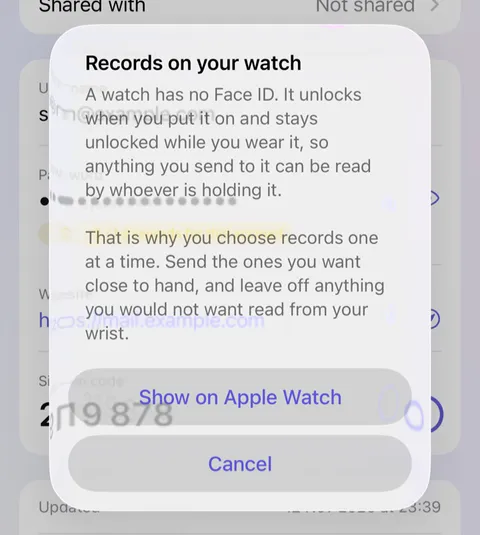
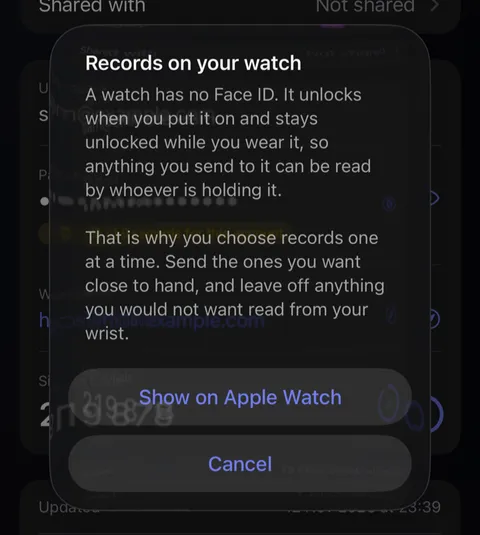
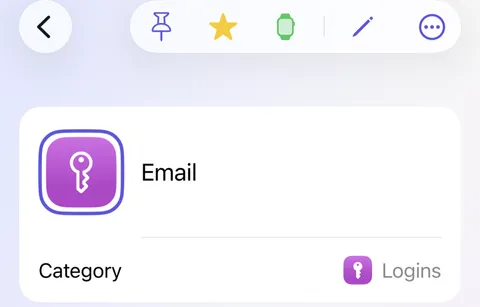
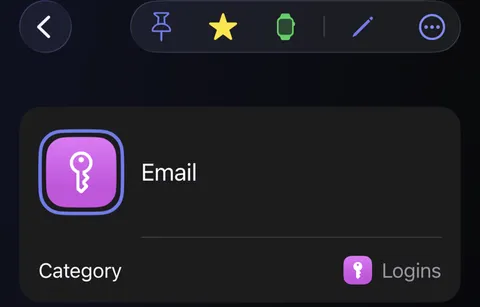
- In Didji on your iPhone, open the record, and tap the watch button at the top. The first time, Didji explains what sending to a watch means; read it and tap Show on Apple Watch.
- The button turns green, and the record appears on your watch within a moment. Tap again to take it off.
- On the watch, open Didji to see your records. Tap one to open it; a sign-in code is shown first, with its countdown.
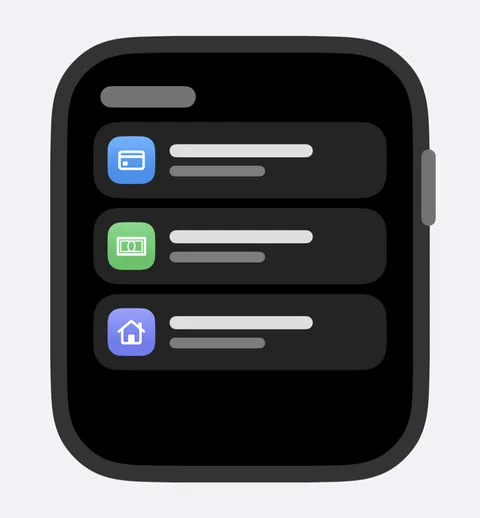
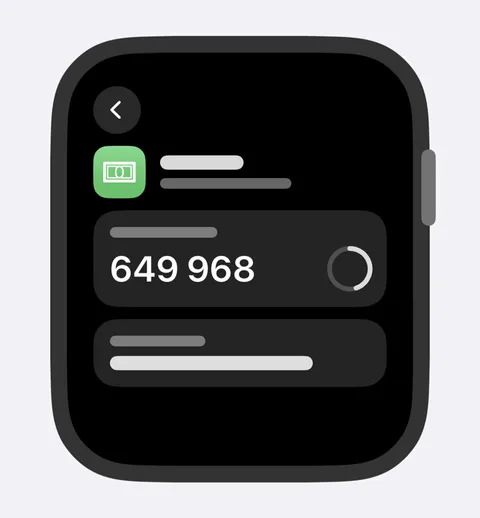
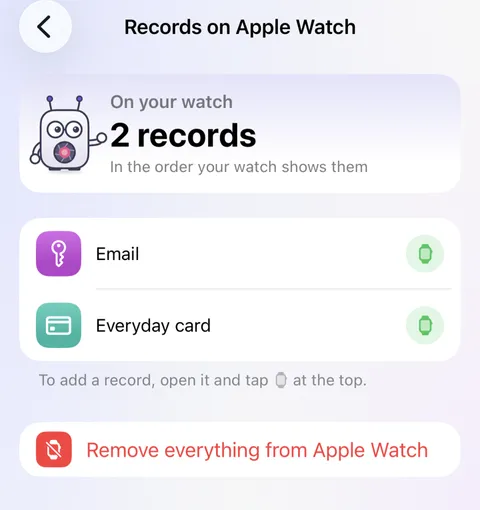
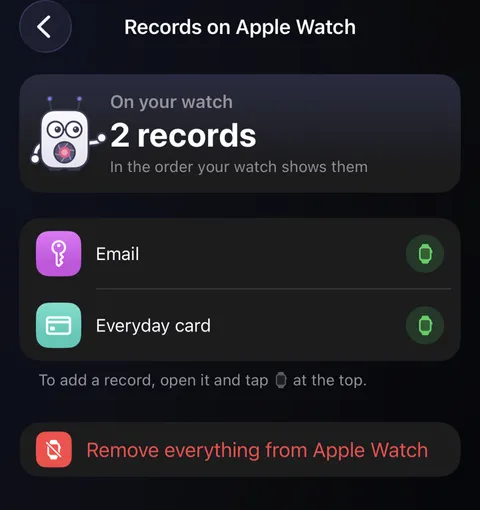
- To see everything on your watch, open Settings and tap Records on Apple Watch, under Devices & data. Tap a record to open it. To remove one, tap beside it, or swipe it to the left. Tapped by mistake? Tap again to put it back.
Good to know
- A watch unlocks when you put it on, so whoever holds it can read it. Send only what you'd be happy read from your wrist.
- The watch forgets its records after 30 days without Didji being opened on your iPhone. You get a note a week before.
- Hidden values stay hidden until tapped. Documents aren't shown on the watch.
- Apple Watch, in Settings under Devices & data, is on when a watch is paired. Turn it off if you have no watch: Didji then shows nothing about the watch on this device. Records already sent stay marked, so a watch paired with another of your devices keeps them.
See also
Still stuck?
Write to us at hello@didji.app, and tell us which device you’re using if you can.
Never send a password or your recovery code to anybody, us included. What we can’t do for you.