Help
Sharing with someone


Share what you choose with the people you choose. Only you can change it.
In Didji: The home screen: People & Places, then their page, then Share
You can share chosen records with someone close, so their Didji shows them too: the Wi-Fi with your partner, a parent's details with a sibling, the car's paperwork with whoever drives it. You connect once, then check off the records one at a time.
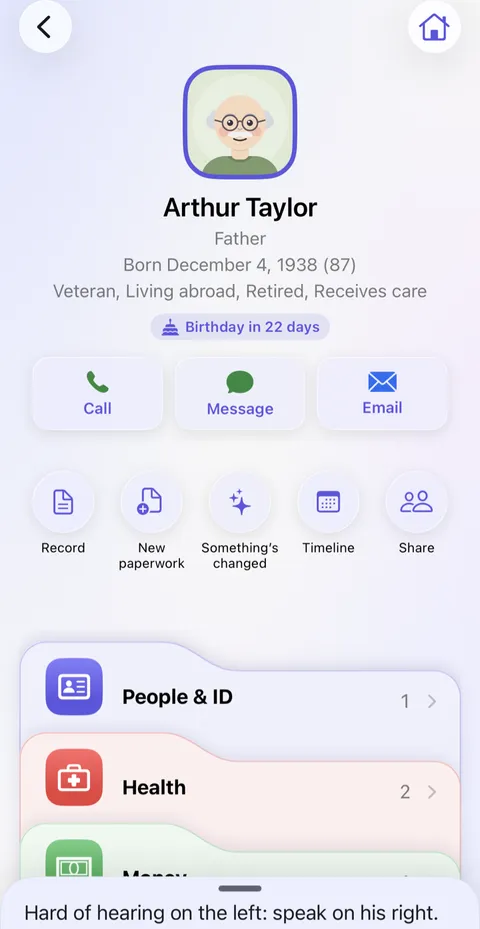
- Open their page in People & Places, and tap Share, the round button under their name. (Or tap Invite … to Didji in their Sharing card. If you've already invited them, the button says Invited; tap it to see the code again. Once someone has accepted it, the code can't be shown again, and Didji asks you to confirm it's them.)
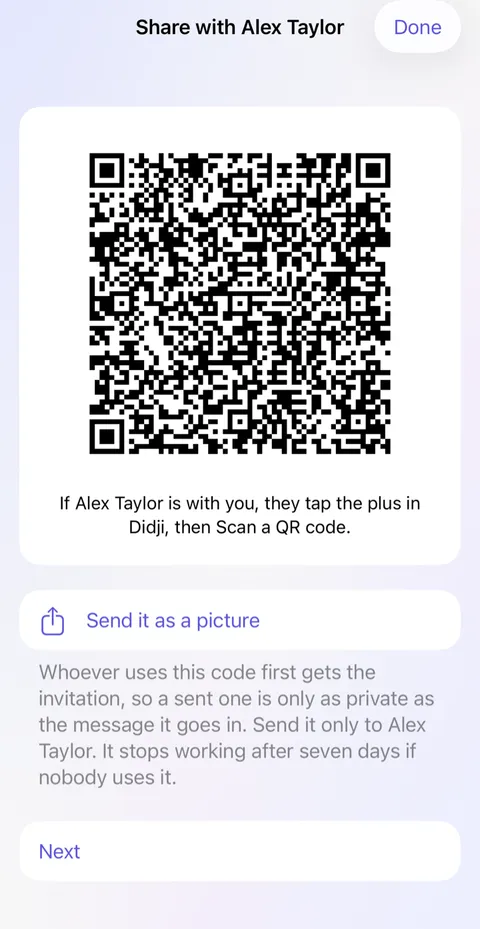
- Didji makes an invitation: a square code. If they're with you, they scan it in their Didji: Been sent a sharing code? on its first screen, or the round , then Scan a QR code. If not, tap Send it as a picture.
- When they accept, Didji asks you to check it's really them. Tap Yes, connect.
- Now, on any record, tap Shared with, and check them off. The record appears in their Didji.
Good to know
- They need Didji on their phone, but they don't need to buy it: seeing what you share is free. If Didji doesn't yet know who either of you is, it asks for a name.
- A code sent as a picture can be shared straight to Didji: they press and hold the picture, tap Share, then Didji.
- A sent invitation works for whoever uses it first, so send it only to them. It stops working after seven days.
- Add a last day shares a record for a while, then takes it back by itself.
See also
Still stuck?
Write to us at hello@didji.app, and tell us which device you’re using if you can.
Never send a password or your recovery code to anybody, us included. What we can’t do for you.