Help
Shortcuts and widgets


Ways to reach me faster. None of them gets past Face ID.
Didji can be opened straight to the place you want, from the Shortcuts app, Siri, the Action button, Control Center, the Lock Screen and your Home Screen. They're quick ways in, never a way around the lock.
- Shortcuts and Siri: open the Shortcuts app and search for Didji. Its shortcuts are Lock Didji, New record, New login, Scan a QR code, Private Camera, People & Places and Due soon. Say one to Siri, or add it to your Action button in the Settings app.
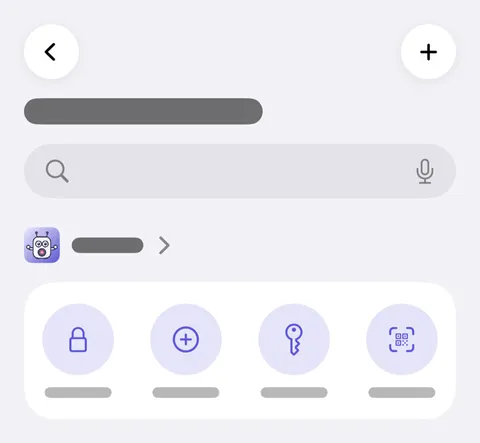
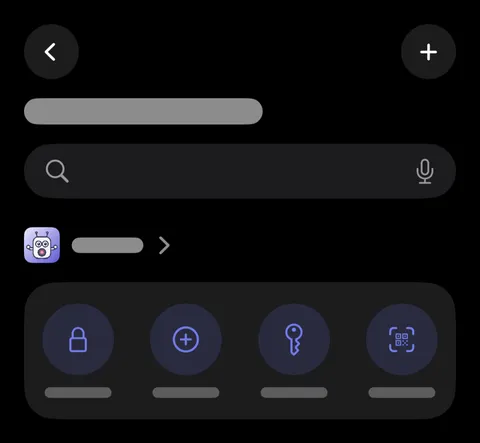
- Control Center and the Lock Screen: the same seven are buttons. Open Control Center, tap at the top left, then Add a Control, and search for Didji.
- Home Screen widgets: touch and hold the Home Screen, tap Edit, then Add Widget, and search for Didji. Didji at a glance counts passwords that need attention and things coming up; Not in Didji suggests one thing most people keep; Didji holds four buttons.
- Pressed while Didji is locked, a shortcut or control starts the unlock for you (Face ID, or your Didji passcode if you use one), then opens the place you asked for.
Good to know
- A shortcut only opens a place. It never shows, returns or changes anything in your vault.
- Widgets show counts and kinds of thing, never names, titles or dates.
- Lock Didji locks the vault right away, wherever you are.
See also
Still stuck?
Write to us at hello@didji.app, and tell us which device you’re using if you can.
Never send a password or your recovery code to anybody, us included. What we can’t do for you.