Help
Didji on more than one device


The same vault, on every device signed in to your Apple Account.
Your vault isn't tied to one phone. Every iPhone, iPad and Mac signed in to your Apple Account can open it, and they all stay in step through iCloud.
- Install Didji on your other device, signed in to the same Apple Account. Make sure iCloud Keychain is on there too.
- Open Didji. The key arrives through your iCloud Keychain, and your vault through iCloud. A large vault can take a few minutes the first time.
- To check a device is in step, open Settings and look at the iCloud row under Devices & data. It says Syncing via iCloud when all is well.
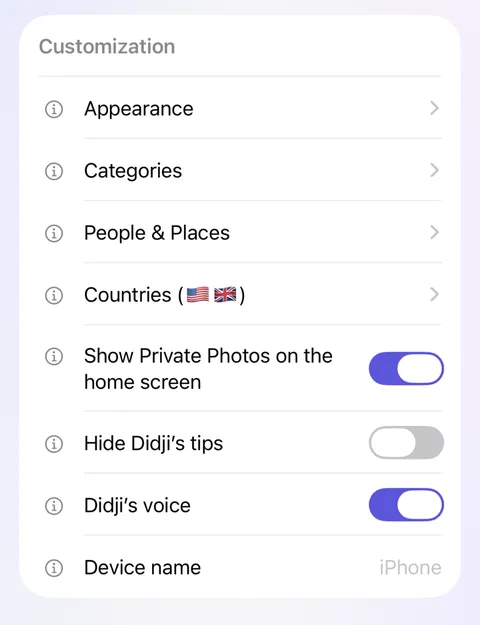
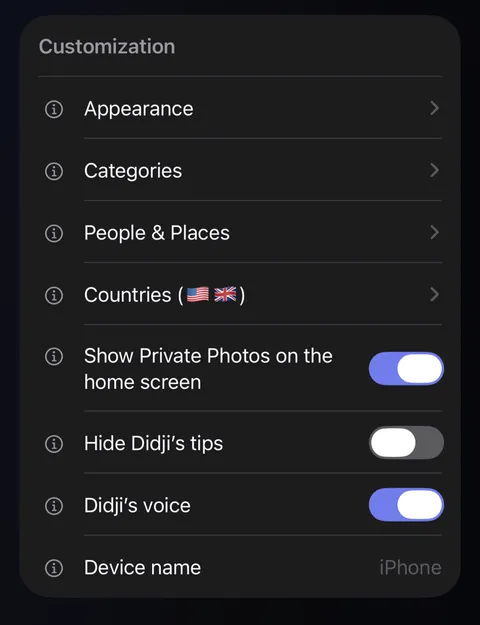
- Give each device a name you'll recognize, in Settings under Customization: Device name. The lock screen uses it to say which device last opened your vault.
Good to know
- Everything travels already locked, so iCloud carries records nobody can read.
- Each device opens with its own Face ID, Touch ID or passcode.
- If something isn't arriving, see Something hasn't appeared on my other device.
- If Didji opens on its first screen, as if for a new vault, your key hasn't arrived yet. Tap Set up my own vault, then I already use Didji, then It's on another of my devices, and it waits for the key. If a step about the free trial comes first, start the trial (it costs nothing), or tap Not now if it says your trial has ended. Never I'm new to Didji: that makes a second vault.
See also
Still stuck?
Write to us at hello@didji.app, and tell us which device you’re using if you can.
Never send a password or your recovery code to anybody, us included. What we can’t do for you.