Help
Keeping a scan or a photograph inside a record


Keep the paper with the details, locked up the same way. Then the real thing can stay safely in the drawer.
A passport's photo page, an MOT certificate, an insurance schedule: any record can hold the document itself, as a scan, a photo or a file. Many templates already have a place waiting for it, called a document slot.
- Open the record, and tap the pencil at the top.
- Find the document slot, such as MOT certificate, and tap Add document beneath it. (No slot? Scroll to the end of the fields, tap Add field, then Document, give it a name, and tap Add document.)
- A small menu offers Scan document, Choose photos or Choose files.
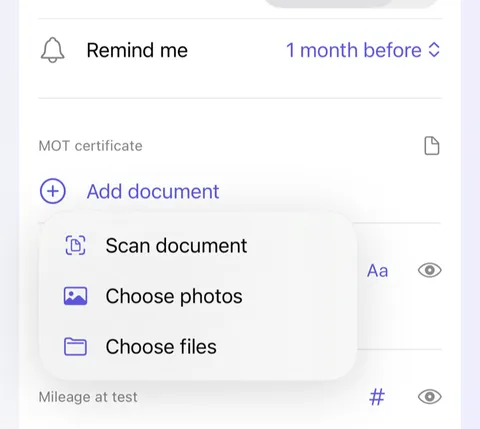
- Scan document opens the camera. Hold the page flat and it's captured by itself; add more pages if there are any, then tap Save in the scanner.
- Tap Save at the top right of the editor.
Good to know
- A scan of several pages becomes one PDF.
- The words in your scans can be found from the home screen's search; see Finding things.
- Taking a document out of Didji, to share or print, asks for Face ID first. A photo shared this way is the file as it came in, with whatever it holds, where it was taken included.
- A scan taken in Didji never goes into Apple Photos. A photo you choose stays there too, so you may want to delete it there afterwards.
See also
Still stuck?
Write to us at hello@didji.app, and tell us which device you’re using if you can.
Never send a password or your recovery code to anybody, us included. What we can’t do for you.