Help
Locking Didji


I lock myself when you've gone, and right away if you ask.
In Didji: Settings, then Security, then Lock the vault
Didji locks itself when it hasn't been used for a while, so a phone left on a table doesn't leave your vault open. You choose how soon, and you can always lock it at once.
- To lock right away, tap the padlock at the top right of the home screen.
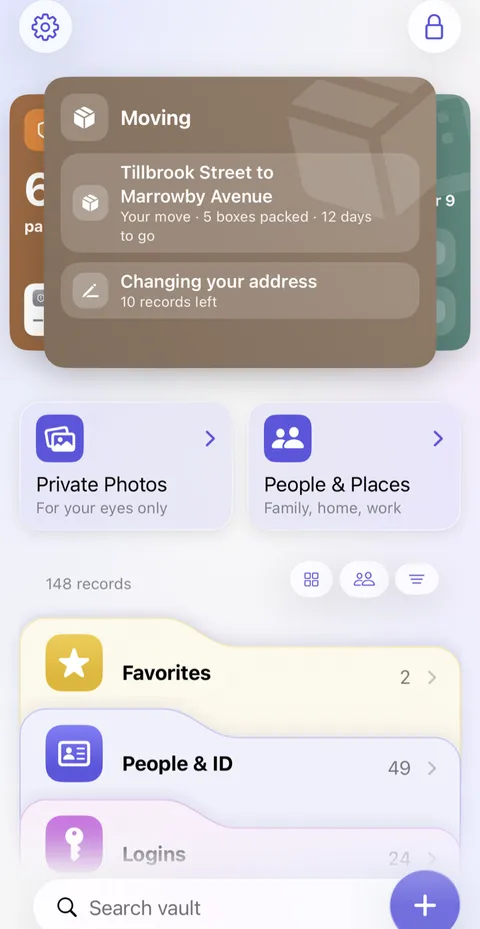
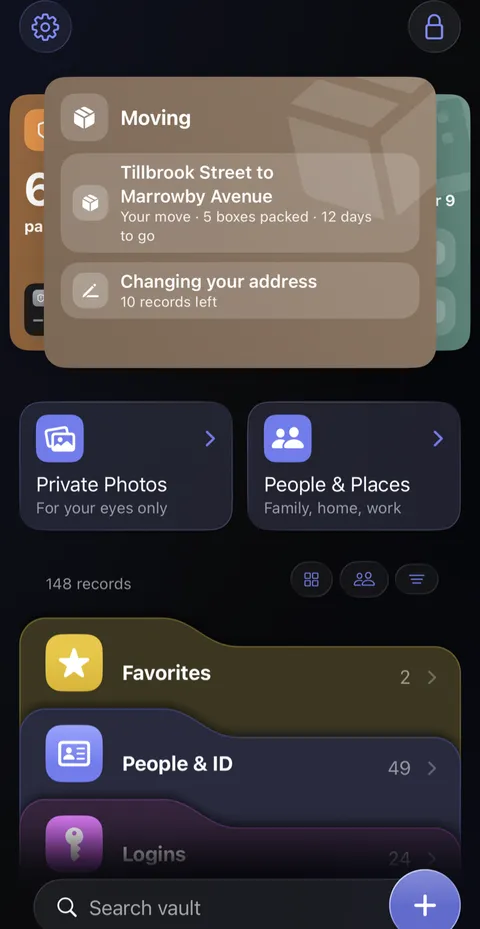
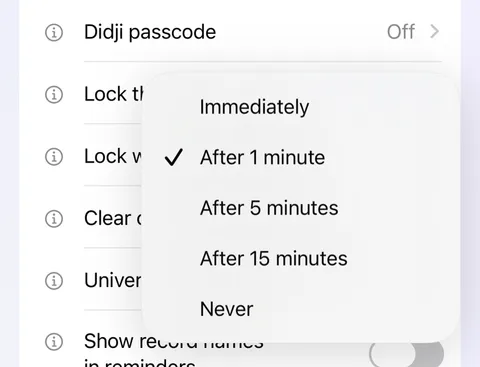
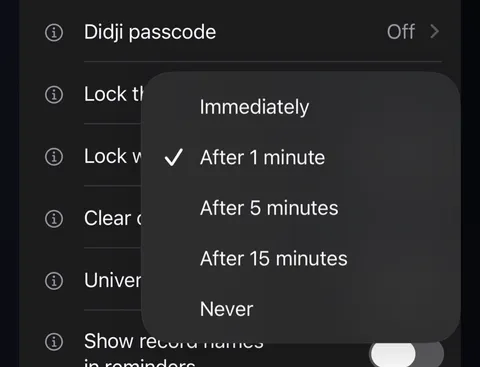
- To choose how soon it locks by itself, open Settings and look under Security for Lock the vault. Tap it and choose from Immediately, After 1 minute up to After 15 minutes, or Never.
- For a quick way to lock, turn on Lock when face down, just below. Turn the phone face down on a table, and Didji locks.
Good to know
- Didji never locks while you're using it.
- When you unlock, Didji opens where you were last: Home or People & Places. Closed, or left for more than two hours, it opens on Home.
- Immediately locks it as soon as you leave Didji. On a Mac, closing Didji's window locks it too, whatever you chose.
- Never leaves it open until you lock it or close Didji. Anyone who picks up your unlocked phone can then get straight in. With a Didji passcode set, Didji also locks the moment your phone locks while Didji is on screen, whatever you chose.
- For a lock of Didji's own, so that even somebody who knows your phone's passcode can't get in, set a Didji passcode; see Your Didji passcode.
See also
Still stuck?
Write to us at hello@didji.app, and tell us which device you’re using if you can.
Never send a password or your recovery code to anybody, us included. What we can’t do for you.