Help
Filling in passwords for you


I can type your passwords in for you. iOS just needs to know I'm allowed.
In Didji: iOS Settings, then General, then AutoFill & Passwords
AutoFill is how Didji puts your username and password into a website or app, so you never type them. iOS decides which apps may do that, so it's switched on once, in iOS's own Settings rather than in Didji's.
- Tap Take me there below, and iOS asks whether Didji may fill in passwords: say yes. (Or open the Settings app yourself, then General, then AutoFill & Passwords, and carry on below.)
- Under AutoFill from, switch on Didji. You can leave Apple's Passwords on too, or switch it off if Didji now keeps everything.
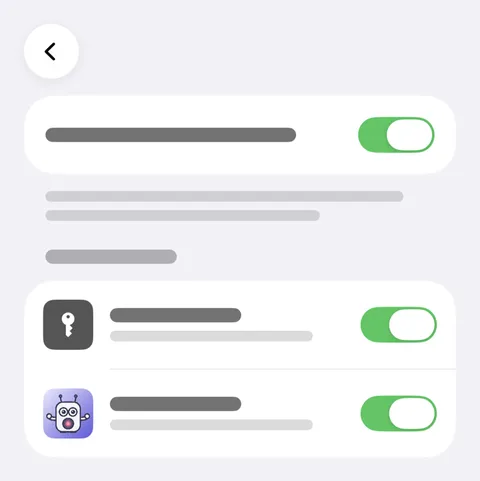
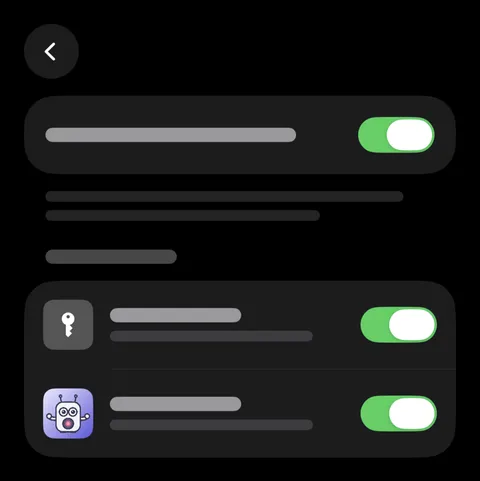
- Now go to a website or app and tap the username or password box. Your login appears above the keyboard, marked Didji.
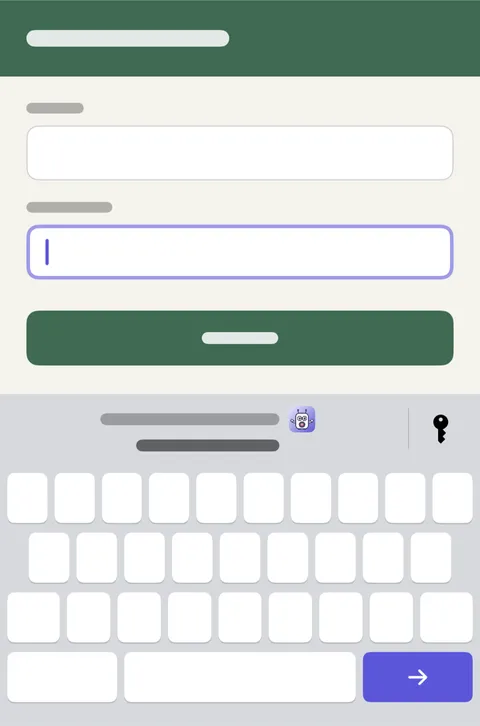
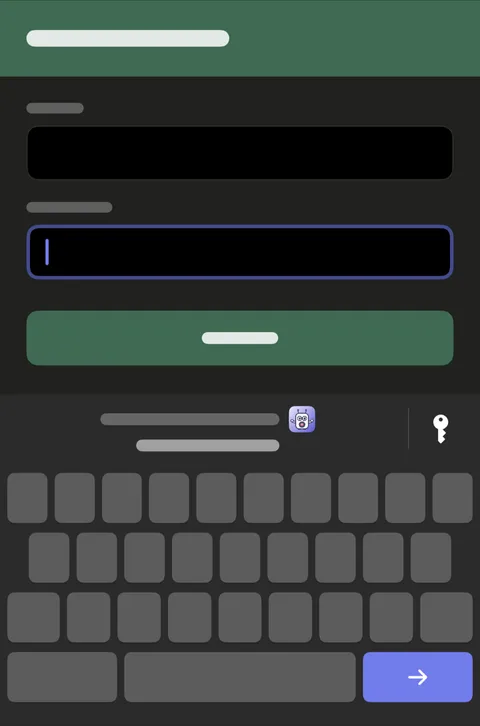
- Tap it, and confirm with Face ID (or your Didji passcode, if you use one). Didji fills in both boxes.
Good to know
- Sometimes iOS offers the login in a card at the foot of the screen instead, with Fill Password. It works just the same.
- A short sheet with Didji in it appears while Face ID checks. That's how Didji makes sure it's you, every time.
- Only records in use are suggested, never archived ones or anything in Recently Deleted.
- One login fills on every website it holds, so a single login can cover amazon.co.uk and amazon.de.
Next: Whose things are whose
See also
Still stuck?
Write to us at hello@didji.app, and tell us which device you’re using if you can.
Never send a password or your recovery code to anybody, us included. What we can’t do for you.