Help
Earlier versions of a record


Changed something and wish you hadn't? Don't worry, I kept the earlier versions.
Every time you save a change to a record, Didji quietly keeps a copy of how it was before. So a password typed over by mistake, or a note you tidied away, is never really gone.
- Open the record and scroll right down to the card at its foot, where it says when it was updated and created. The last line is History, with how many earlier versions there are. Tap it.
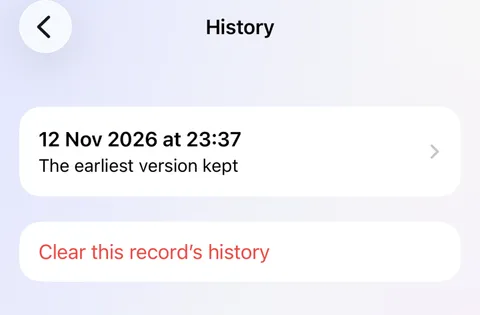
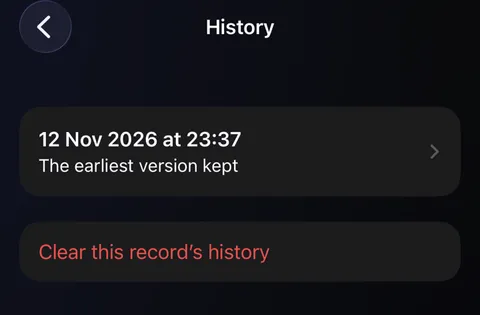
- The History screen lists the versions, newest first, each with the date and time it was saved. Tap one.
- You see the record exactly as it was. Anything different from now is marked Not as it is now in orange.
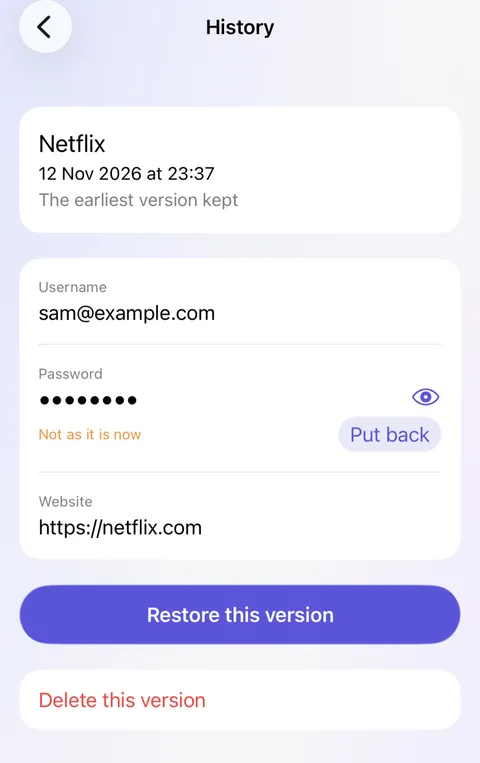
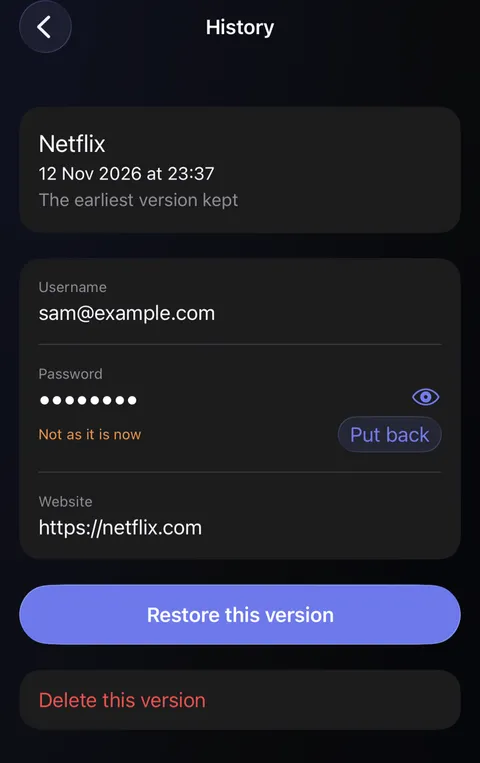
- Tap Put back beside a single field to bring just that back, or Restore this version to bring back the whole record as it was.
Good to know
- The last 20 versions are kept, and the last five passwords however old they are.
- To see the passwords a login's password replaced, tap on its record, then Previous passwords.
- Restoring keeps a copy of how the record is now, so you can always change your mind again.
- History stays with your vault. It's never shared with anyone and never exported.
See also
Still stuck?
Write to us at hello@didji.app, and tell us which device you’re using if you can.
Never send a password or your recovery code to anybody, us included. What we can’t do for you.