Help
Showing something large


Perfect for reading a code down the phone, or holding it up across a counter.
Reading a long password or number off a small screen is fiddly, especially to someone else. Large Type fills the whole screen with it, one character at a time, so nobody has to squint.
- Open the record, and touch and hold the value you want, such as a password. It fills the screen at once, each character with its number underneath. Hidden values are shown here too, so check who's looking.
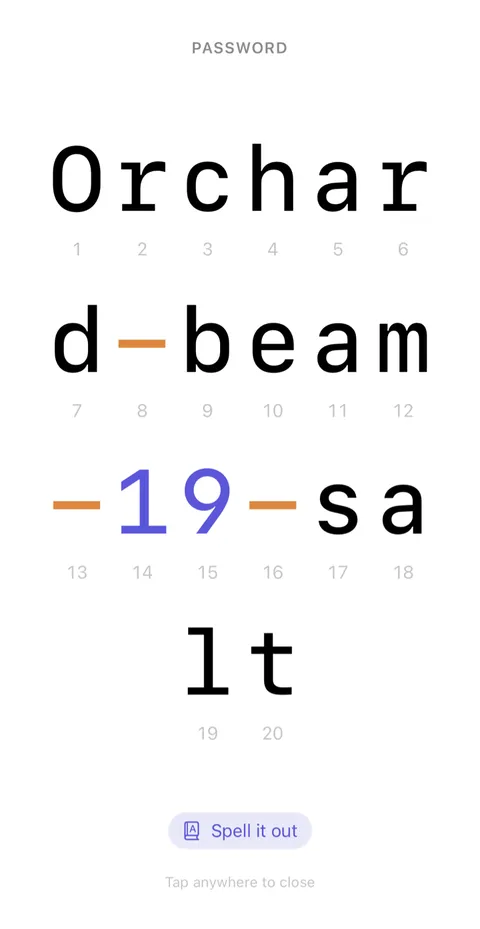
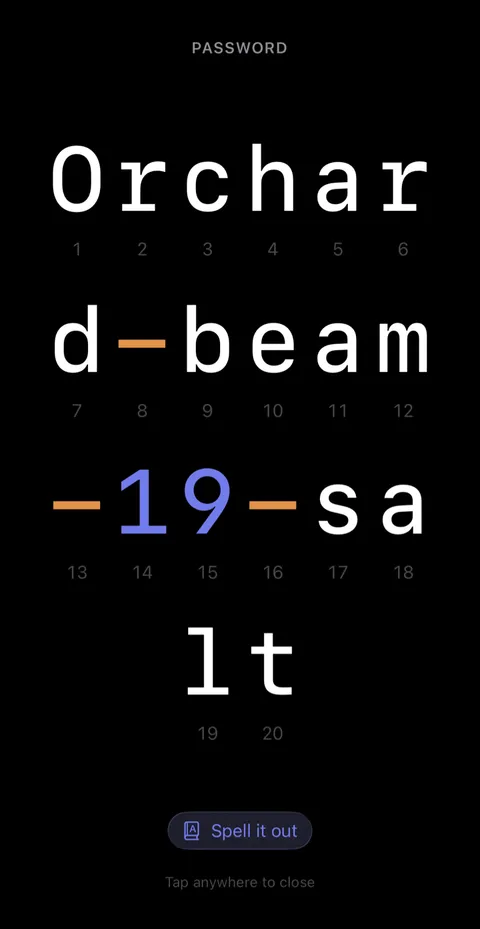
- To read it out over the phone, tap Spell it out at the foot. Every character gets its word: "Capital Oscar", "romeo", "Hyphen", "Nine".
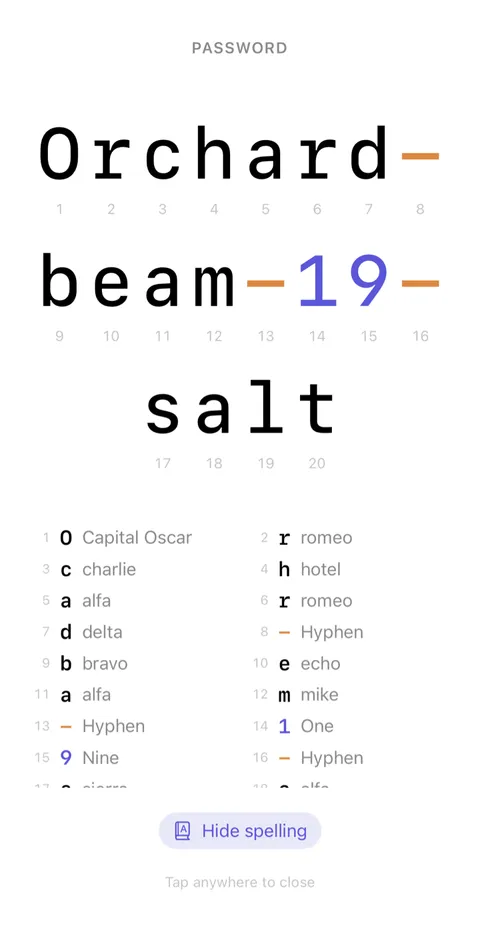
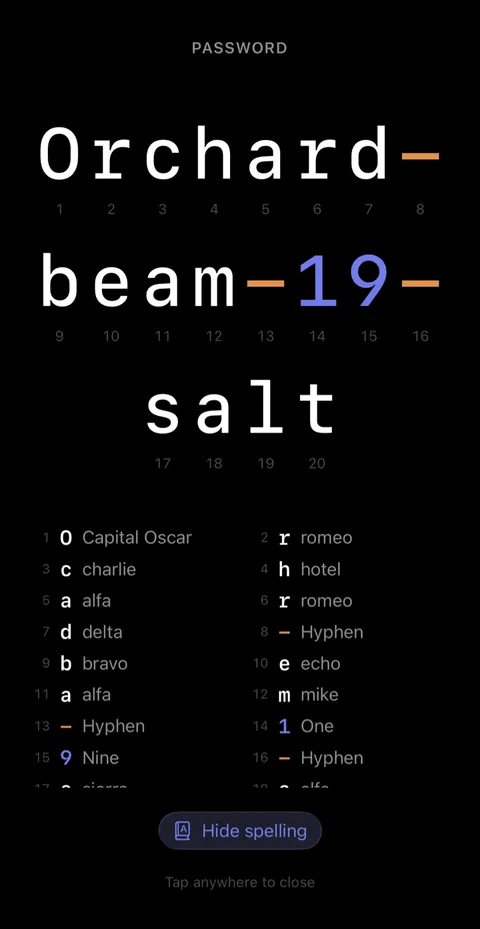
- Tap anywhere to close.
Good to know
- The numbers help with a long code: "characters 9 to 12 are r, d, e, n".
- Digits and symbols are coloured differently from letters, so an O and a 0 can't be mixed up.
- Large Type is kept out of screenshots.
- To hear a screen read aloud instead, these Help pages included, turn on Speak Screen in your iPhone's Settings, under Accessibility, then Read & Speak. Then swipe down from the top of the screen with two fingers.
See also
Still stuck?
Write to us at hello@didji.app, and tell us which device you’re using if you can.
Never send a password or your recovery code to anybody, us included. What we can’t do for you.